Your remote team juggles 9 productivity tools yet keeps missing deadlines. Context switching is the norm; half-finished work is the order of the day—everyone looks busy, but no visible progress.
Your team is struggling, and it’s not because they lack productivity tools. But because they have too many. Each tool you add to fix a problem creates 3 more: an extra login to track, an extra notification, and another place where work and information can get lost.
According to a study, knowledge workers switch between apps up to 1,200 times daily, costing around 4 hours per week to regain focus. Additionally, 66% of workers say toggling between apps makes them less productive.
The truth is, your remote team doesn’t need more tools. It needs fewer well-chosen tools that are intuitive, fit smoothly with your workflow, and integrate properly.
In this post, I picked the best productivity tools for remote teams—by category. I break down why they stand out, their drawbacks, alternatives, and who they are best suited for. You’ll also learn how to choose the right tools for your team, and discover tool stacks that help your team get more done with less.
Key Takeaways
- Async-first teams: Notion (Doc) + ClickUp (project management) + Slack (comms and collab) + 1Password (password management)
- Agencies: Slack (comms and collab) + ClickUp (task management) + Notion (SOPs and deliverables) Zoom (client calls) + Hubstaff (time tracking)
- Small teams (2-10): Slack (comms) + ClickUp (project & task management) + Notion (file storage & doc) + 1Password (password sharing & management)
- Fast-growing startups: Slack (comms & collab) + Asana (project management) + Notion (docs, wikis, & SOPs) + Zoom (meetings & async video)
- Engineering teams: Slack (comms & collab) + Asana (project & task management) + Confluence (doc) + Loom (async video & screen rec) Miro (white boarding) + 1Password (password management)
Why Remote Teams Use More Tools but Get Less Done
Remote teams rely on the best productivity tools to solve distance and coordination problems. However, sometimes, they use more than they actually need. This creates a productivity paradox where more tools doesn’t always lead to more output.
Rather than solve a problem, each tool adds more:
- Notifications
- Updates to check
- Settings to manage
- Habits to maintain
Too many tools also mean work gets scattered across many places, causing context switching. As a result, time that would have been invested in high-impact work is wasted regaining focus after app switching, searching for information across apps, and managing tools.
The result? Your Productivity suffers.
Beyond decreased productivity, tool sprawl (app overload) can also stretch your finances. According to industry analysis, collaboration tool sprawl (overloading tools) costs the average 1,000-employee company $340,000 in redundant licenses.
This guide contains a simple framework to help you choose the best remote work tools to include in your tech stack. And a handpicked list of the best options so you don’t have to figure it out yourself.
The Best Productivity Tools for Remote Teams at a Glance
| Category | Tool | Best For | Starting Price | Key Strength |
|---|---|---|---|---|
| Project management | ClickUp | Budget-conscious remote teams | $7/user/month | Visual project management |
| Communication | Slack | Teams that want conversations organized into a searchable hub | $7.25/user/month | Organizing team conversations |
| Documentation | Notion | Teams that need to create and store company knowledge | $10/user/month | Flexibility and collaborative documentation |
| Time tracking | Hubstaff | Managers who value accountability | $4.99/user/month | Time tracking and accountability |
| AI & Automation | Zapier | Remote teams with repetitive workflows | $19.99/month | Extensive integration catalog |
| Security | 1Password | Remote teams that need to securely share and manage login information | $2.99/user/month | Watchtower, secure team access, and Travel Mode |
How to Choose the Best Productivity Tool for Your Remote Team
The best productivity apps for your remote team fit perfectly. It solves a specific problem, slots seamlessly into your team’s workflow, and integrates with your current stack, reducing app switching and improving productivity.
The wrong one feels like a round peg in a square hole! It contains bells and whistles but doesn’t support real collaboration, integrates well with other tools, or support async workflows.
To avoid wasting money stacking tools that cripples your productivity rather than improve it, ask yourself these key questions:
Questions to Ask Before Subscribing to any Remote Work Tool
1. Does it solve a specific problem?
Ask yourself if the tool you’re subscribing to solves a specific problem: poor communication, disorganized work, data silos, weak collaboration, and so on.
Can’t identify a problem? Don’t subscribe just yet. Buying a tool your team doesn’t need could result in wasted SaaS spend, broken workflow, and ultimately tool sprawl.
Research shows that 50% of all software licenses go unused, costing companies $45 million per month in wasted software spend.
2. Is your team async-first or synchronous?
Async-first (asynchronous) workflow doesn’t require team members to be online simultaneously for work to progress. Work happens through messages, shared documents, and recorded updates. Team members—especially those in different time zones—respond when available.
It’s the opposite of synchronous workflow, where team members work together in real time. Getting a tool that suits your team’s workflow style (asynchronous or synchronous) can reduce interruptions, improve collaboration and communication, and ultimately boost productivity.
3. What's your budget per seat per month?
Most productivity tools charge per seat (user) per month, with prices ranging from as little as $15 going up to $165. At first, $15 per user might seem cheap. However, multiply it by your 12 team members, and you are looking at $180/month or $2,160/year.
Compare the real annual cost of the tool you want to subscribe to against your budget before signing up for a free trial. This helps you avoid tools that are expensive to maintain, ensuring you stay within your budget even as your team grows.
4. What does your current stack already cover?
Before subscribing to a new tool, take inventory of your current stack and note the problems they solve. Chances are, you’re already paying for a tool that performs the same task as the tool you intend to subscribe to.
For instance, if your team already uses Slack, adding another communication tool like Microsoft Teams will do more harm than good. Similarly, if your team uses ClickUp for task management, you may not need to subscribe to Asana for the same purpose.
Owning two tools that do the same job is only ideal when they serve different groups, workflows, or use cases.
5. Does it integrate with your existing tools?
According to studies, workers spend 20-30% of their workday finding files, messages, or context across different tools. On top of that, it takes 23 minutes to fully regain focus after switching tasks or apps.
The best productivity tool for your remote team integrates well with existing tools—reducing context switching, enhancing focus, and ensuring smoother task completion.
For instance, Slack—a communication tool—integrates with Trello—a project and task management tool. This means that when you talk about a task in Slack, it automatically becomes a task in Trello, without switching apps. Also, Google Drive integrates with Notion. When you add a document in Drive, it appears or links inside Notion.
The Best Productivity Tools for Remote Teams (By Category)
You may think your remote team needs a huge tool stack to hit peak productivity. Drum roll… they don’t! In fact, according to the productivity paradox, more tools equal less impact. What your team needs is a lean setup that creates clarity, not friction.
Below, I handpicked the exact tools required for your productivity tech stack—category by category. So your team can get more done with less.
1. Project Management.
Winner: ClickUp
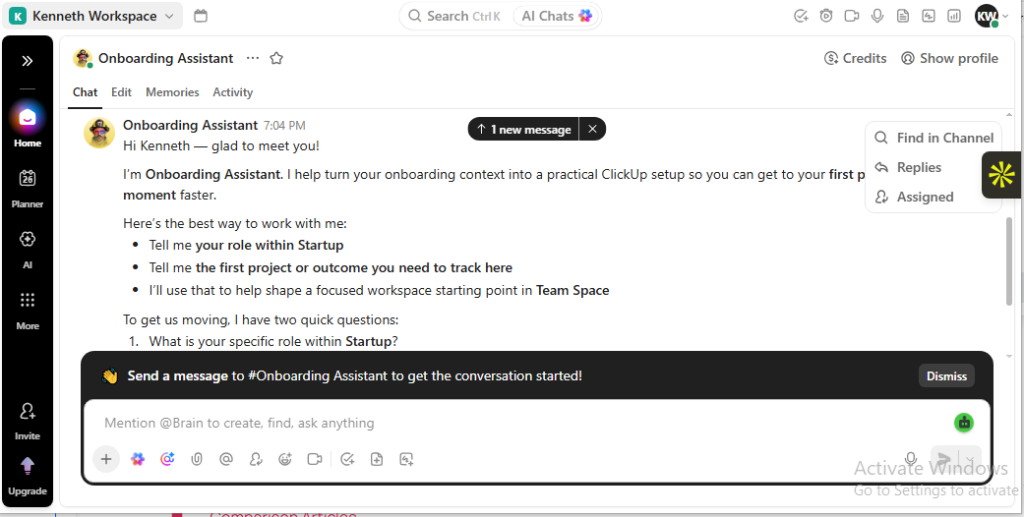
ClickUp is an all-in-one productivity platform for businesses and solopreneurs who want to manage tasks and projects and streamline workflows in one unified workspace.
It markets itself as the everything app for work—which is no surprise—given it can perform the job of multiple standalone apps. But that’s not why it’s my pick.
Why it wins
If Apple dominates tech, ClickUp is coming for project management. Its all-in-one capabilities make it impossible to ignore, especially for team managers looking to reduce context switching and tool overload—while boosting collaboration.
I like that ClickUp functions as a full workspace, doubling as a time tracker, whiteboard, collaboration tool, and chat platform. This makes collaboration, tracking, and execution seamless.
ClickUp also has strong project and task management capabilities, offering flexibility and customization. This lets you build personalized workflows with custom statuses, fields, task types, and automations that fit how your remote team operates—whether by client, project, department, or sprint.
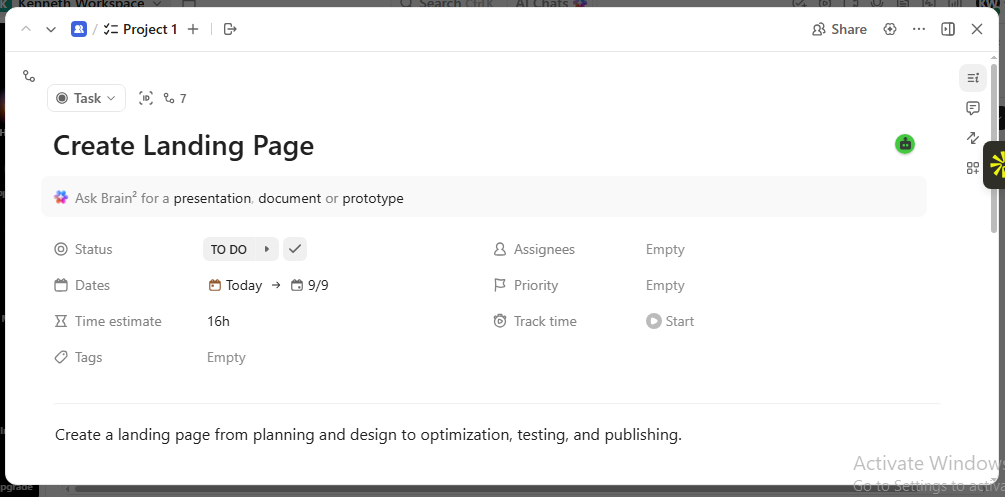
Want to launch a new landing page or design a press kit? ClickUp lets you create tasks and break them down into smaller steps (subtasks). You can also create checklists, assign owners, set priorities, and add due dates, all from a single screen.
Additionally, you can choose how you visualize your tasks. Not a fan of lists? No worries! ClickUp offers multiple viewing options, including board view (Kanban), calendar view, Gantt, box view, and so on.
What stood out most during my review was ClickUp’s custom dashboard. I really like that it allows you to drag, resize, and arrange different widgets (task lists, charts, and time tracking) to mirror exactly how your team thinks.
It also lets you monitor important metrics—tasks and project progress in one place. This means you can see who’s working on what, what’s delayed, and completed tasks at a glance, in real time.
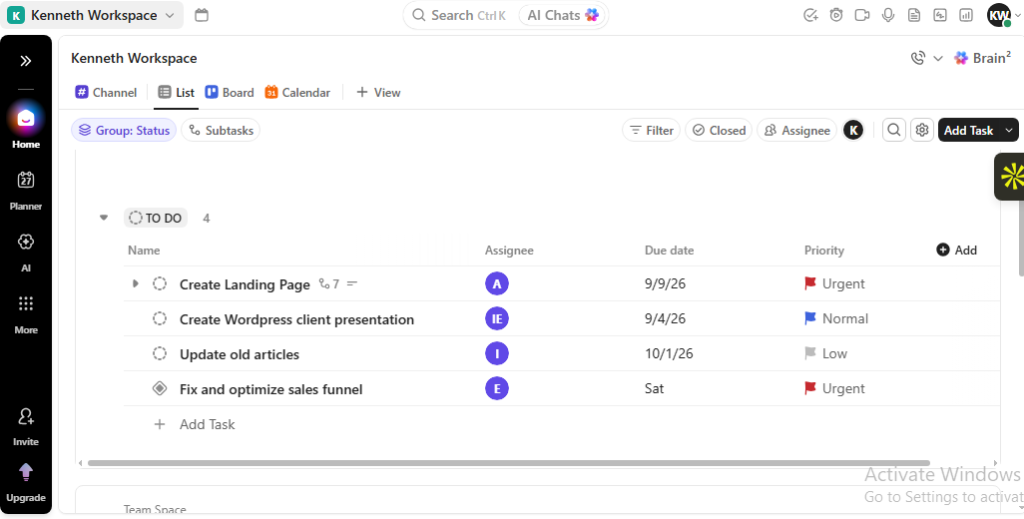
Remote teams rely heavily on communication to function. ClickUp has a built-in messaging system that allows team members to communicate, comment, and collaborate without external communication tools. Want to draw a team member’s attention to something? @mentions let you do that.
Beyond @mentions, ClickUp’s messaging system also includes chats, task comments, doc comments, posts, and updates. The best part? It supports async communication. Meaning your team members don’t have to be online at the same time for work to progress.
If you appreciate centralized workflow and want to reduce tool switching, you’ll love ClickUp integration. It spans over 1,000 tools including Slack, Google Workspace, Zoom, Zapier, and Google Calendar. This lets you connect your existing tools and streamline your workflow.
The honest downside
One of ClickUp’s biggest downsides is its steep learning curve, which can slow onboarding. And like some new users, I felt it was overloaded with features. This made it feel overwhelming as I tried to figure out how to use the platform so I could set it up properly.
But after spending time on the platform, you start to learn the ropes and become more comfortable navigating each feature. That is exactly what some users experience. Mattia Francesco R., a reviewer on G2, put it this way:
“The learning curve can be steep for new users, especially when trying to navigate the depth of features without guidance. Some team members found it overwhelming at first. Also, while the mobile app is useful, it’s not yet as fluid or complete as the desktop version. A few UI refinements could improve speed and intuitiveness overall.”
Beyond being overwhelming, ClickUp occasionally lags when you’re working on large projects or managing many tasks. Some users also complain that the mobile app isn’t as fast and reliable as the desktop or web app.
Asana Pricing
- Free plan: Available
- Paid plans: From $7/user/month, billed annually
- Free trial: No separate trial; ClickUp offers a Free Forever plan
N.B.: Prices are billed annually.
Who should consider something else?
Aren’t satisfied with ClickUp? Or perhaps it doesn’t fit your workflow or remote team preferences? Here are other options to consider:
Asana:

Asana is a work and project management tool designed to help teams plan, track, manage, and collaborate on projects in one shared space.
Choose Asana for your remote team if:
- You prioritize project management and collaboration
- You’re ok using a separate tool for real-time communication
- You handle projects that need coordination, not heavy customization
- You want a tool your team can adopt easily, with minimal setup and configuration.
- You want an intuitive tool with a simple and user-friendly interface even if it requires you to pay more
monday.com:

monday.com is a flexible cloud-based work management platform used to plan, collaborate, track, and manage work in one place.
Choose monday.com for your remote team if:
- You want a tool that’s easy to use, learn, and adopt
- You want a tool with visual workflow and dashboards
- Your remote team comprises non-tech individuals who need a project management tool
- You manage a cross-functional remote team (designer, developer, marketer, product manager)
2. Communication.
Winner: Slack
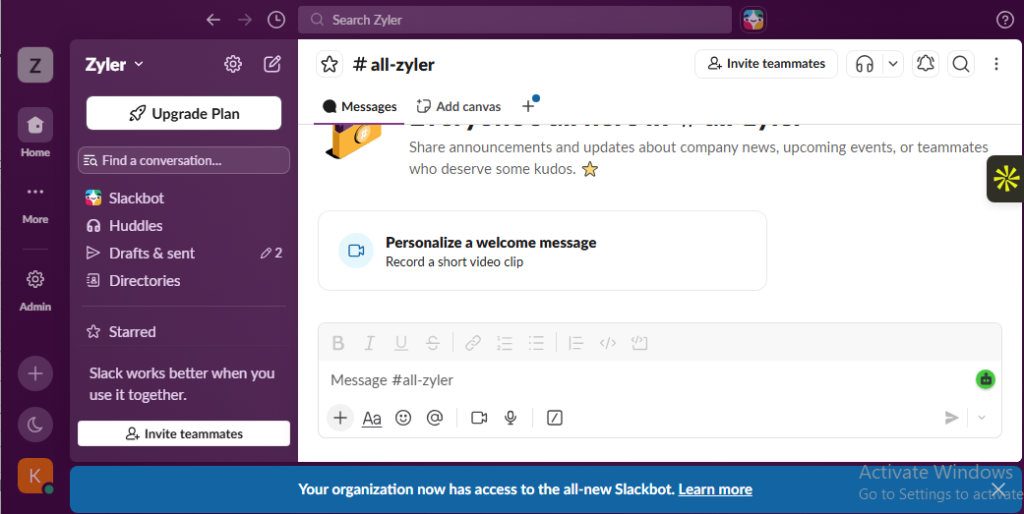
Slack is a popular communication platform and one of the best productivity tools for remote teams. It offers video/ voice calls, file sharing, and real-time messaging for faster collaboration.
Slack supports threads—a feature that allows you and your team members to create discussions around a particular message. It also integrates with many tools including Asana, ClickUp, Google Drive, and HubSpot.
Why it wins
Widely regarded as one of the best Collaboration tools for remote teams, Slack makes communication easy and organized. It reduces your team’s overreliance on email with instant messaging for better real-time async collaboration.
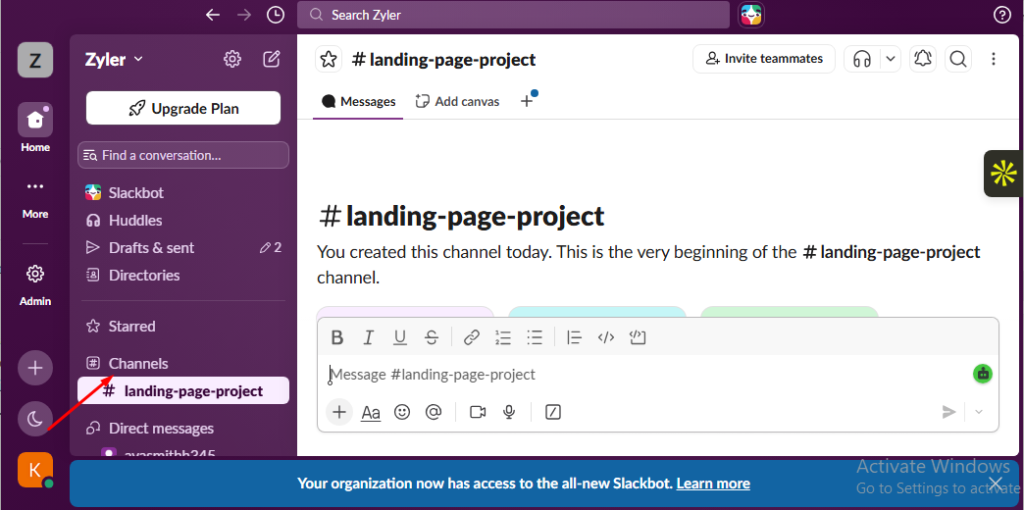
Slack instant messaging is its bread and butter. It includes channels, threads, file sharing, Slackbot, huddles, and more. Channels allow you to create space for specific team conversations based on projects, topics, or teams.
For example, you can create a space for your marketing team (e.g., #marketing). Or a space to discuss the ongoing landing page project, e.g., (#landing-page-project).
Threads, on the other hand, let you create conversations within a conversation. This helps reduce clutter, ensuring your conversations remain structured and organized.
Slack also supports smooth file sharing. You can drag a file from your computer and drop it directly in channels or direct messages to provide context to crucial conversations.
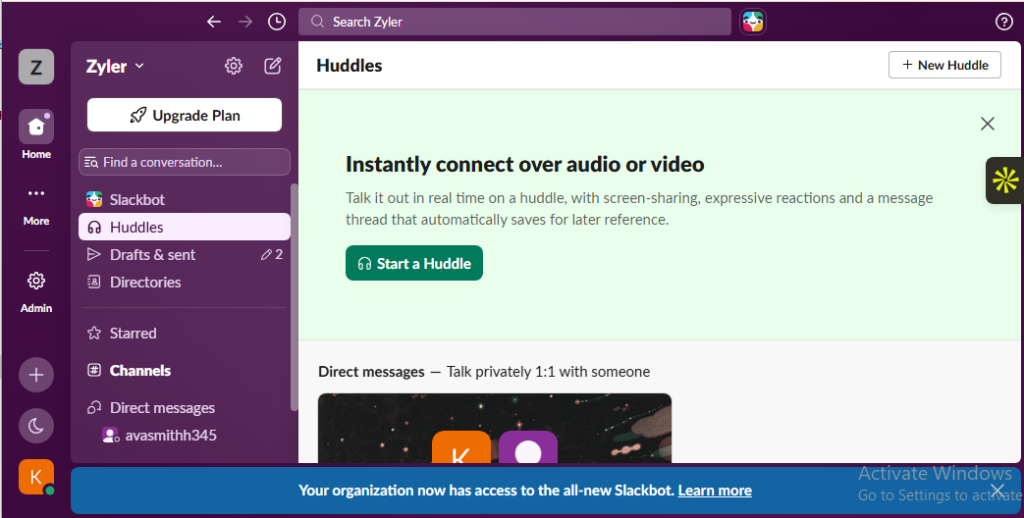
I was impressed with Huddles—Slack’s built-in video conferencing tool. It provides a quick way to connect with your team members via video/audio calls, reducing the need for a separate dedicated video conferencing tool.
Plus, it comes with an AI note feature that, when turned on, automatically captures what was discussed in a meeting. This allows your team to focus on the conversation instead of manually taking note
Slack Search feature reduces a major team headache and time waster: information hunting. Research shows that over 60% of a team’s time is spent searching for context, information, and action items.
Slack search helps you locate conversations, DMs, shared files, people, and more. This ensures that your team spends more time on meaningful work instead of hunting down old conversations and decisions across channels, threads, saved items, etc. It also offers filters to narrow results by modifiers, date, file type, and more.
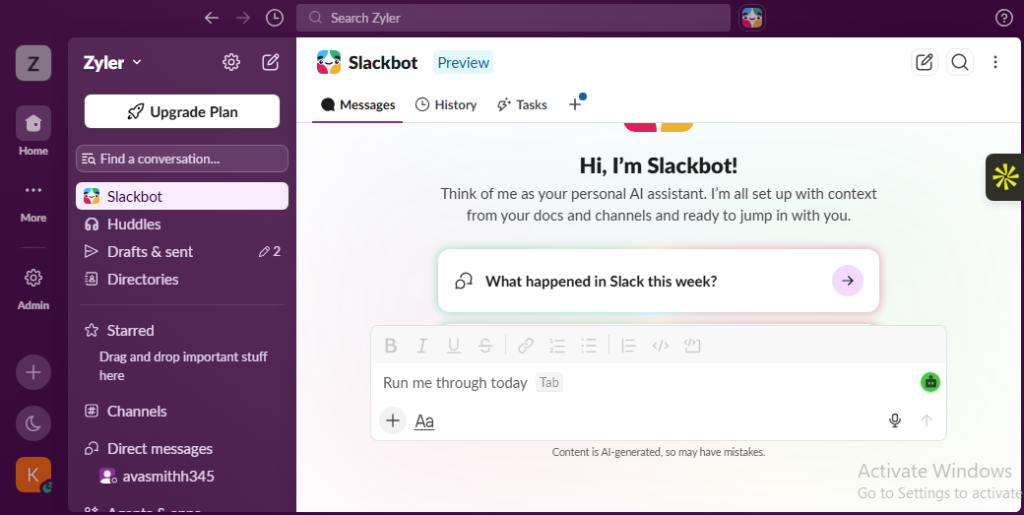
One feature that stood out to me is Slackbot—Slack’s built-in personal AI agent. Imagine it as a mini assistant that lives in your workspace. With Slackbot, you can automate replies to basic questions triggered by set words or phrases, saving you and your team time.
You can also summarize old direct messages, threads, or channels. And search through conversations, documents, files, and even connected apps to find specific information. Unfortunately, this advanced version of Slackbot is only available in the Business + or Enterprise + plans.
Now let’s talk about integration.
Slack boasts one of the most robust integration ecosystems I’ve come across. It connects with over 2,600 tools like Asana, Zoom, Google Meet, Trello, Google Drive, Salesforce, and Zapier. So you don’t have to jump between apps and disrupt your workflow.
The Honest downside
While Slack is hands down one of the best communication tools for remote teams—like any tool, it’s not without flaws. One of them is its limited free plan.
I understand that free plans are supposed to have limitations to encourage users to upgrade. But limiting the message history of freemium users to 90 days seems too much to me. The same with restricting freemium users to 10 app integrations per workspace.
This can create workflow friction and fragmentation. Beyond its limited free plan, some Slack users—especially those who belong to multiple channels—have complained of notification overload, which causes overwhelm and distraction.
As a result, time that should be spent on meaningful work is spent context-switching and managing alerts.
Slack Pricing
- Free plan: Available
- Paid plans: From $7.25/user/month (billed annually)
- Free trial: Available for paid plans
N.B.: Prices are billed annually.
Who should consider something else?
If Slack doesn’t meet your expectations or fits your team workflow, here are two other options to try:
Zoom

Zoom is a cloud-based video conferencing tool used for virtual meetings (audio and video) and webinars, but also supports screen sharing, team messaging, and other collaborative activities.
Choose Zoom for your remote team if:
- You often host external clients
- You need a tool with high-quality video and audio
- You prioritize real-time face-to-face communication
- Your team holds serious and structured meetings frequently
- Your team relies heavily on screen sharing and presentations
- You need a communication tool with strong built-in video conferencing
Microsoft Teams
Microsoft Teams is a cloud-based collaboration tool that is designed for team communication, file sharing, video meetings, etc.
Choose Microsoft Teams for your remote team if:
- You are already using Microsoft 365
- You like having everything in one place
- You want a platform with stronger security and compliance
- You need a tool with enterprise-grade communication and collaboration
- You are a cost-conscious remote team. Slack costs can add up as your team increases.
3. Documentation
Winner: Notion
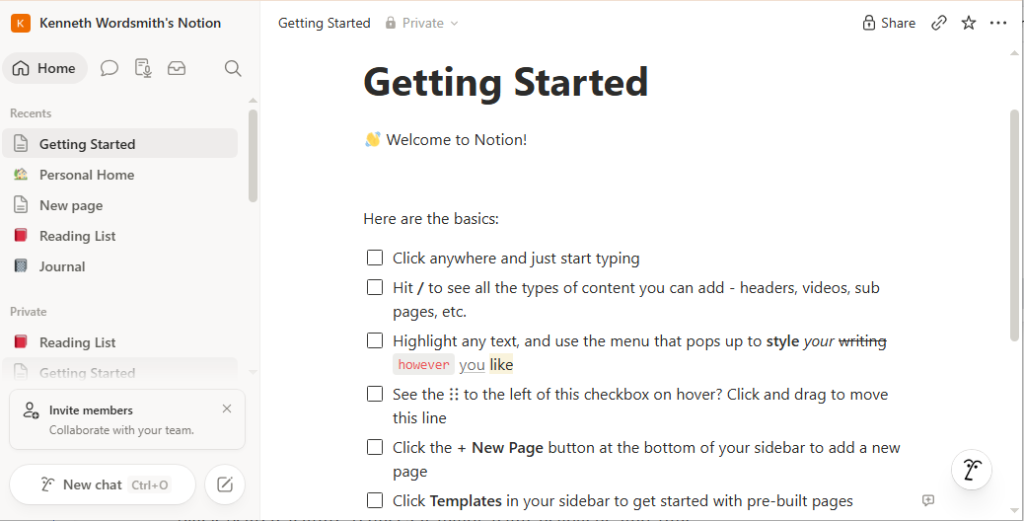
Notion is a digital workspace that brings all your work together by combining note-taking, project management, documents, wikis, and databases in one place.
Whether you need to store knowledge in one place, share information with team members without long email threads, preserve your company knowledge, or support async work. Notion has everything you need.
What makes it stand out?
Why it wins
Besides being one of the best productivity tools for remote workers, Notion leads the pack in the documentation category.
And here’s why.
It’s flexible and easy to use.
When I visited the web app, I was greeted by a clean, minimal interface that immediately pulled me in. This makes Notion a great choice for remote teams that value simplicity.
On top of that, I love how Notion functions as a centralized knowledge hub where info isn’t just stored and retrieved, but linked to each other. This makes it a living, connected knowledge base where everything is just a click away.
Think project pages linked to meeting notes, onboarding docs linked to team pages, SOPs linked to projects, and so on.
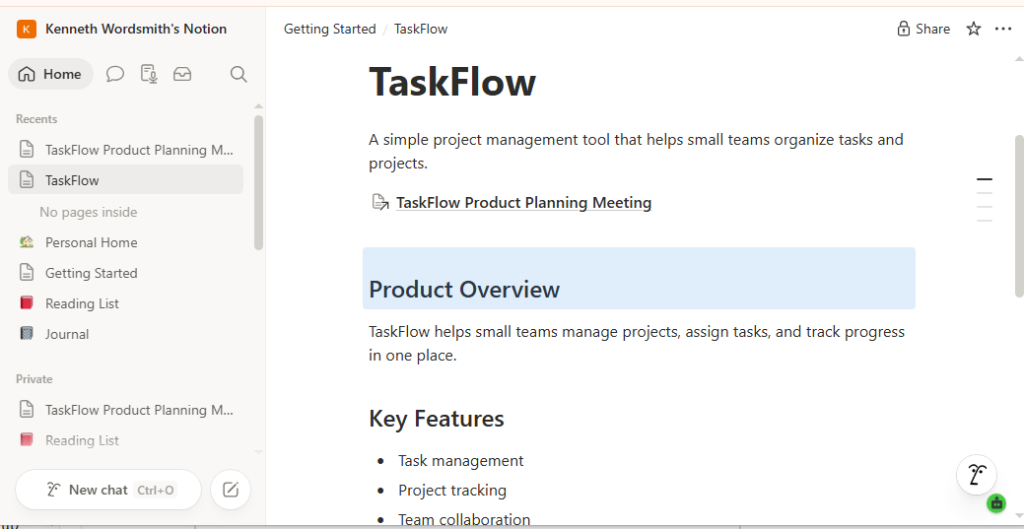
If your remote team relies heavily on documents for projects, you’ll appreciate Notion’s real-time collaboration feature. It allows team members to view and edit a page at the same time. They can also add comments, tag teammates using @mentions, and view live updates simultaneously.
Additionally, you can see who is working on what, as their profile avatar/profile picture appears next to the block they clicked on or are editing. All that happens in real time.
What impressed me most about Notion is its block-based editing system, which lets you build customized pages using content blocks.
Think of content blocks like Lego pieces—you can combine and arrange them to build personalized pages that suit how your team works.
Examples of content blocks are:
- Page
- Divider
- Paragraph
- Checklist
- Heading
- Image
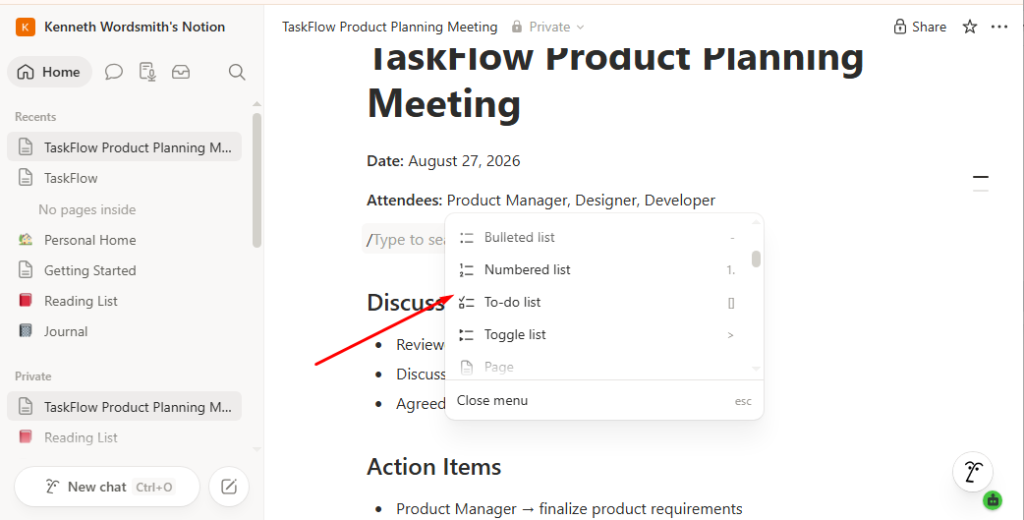
Notion does more than just store company knowledge, SOPs, and project information. It also makes retrieval easy through search options. For instance, you can conduct in-page searches to look for specific information on a page. You can also search your entire workspace using global search.
Want to extend search across connected apps and the web? Notion AI helps. Unlike traditional searches that look for exact matches to your search phrase, AI search uses artificial intelligence to understand your questions and deliver accurate, comprehensive results.
With it, you can ask questions about projects, processes, and facts, or conduct research. To enjoy full access to Notion AI search, you need to upgrade to a business or enterprise plan.
Like most documentation software, Notion integrates with your favorite tools. This helps prevent app switching, keeping work in one place.
The Honest downside
Notion’s steep learning curve is a major hurdle. It’s packed with bells and whistles that may feel overwhelming at first. But once you get comfortable with it, it’s smooth sailing from there!
Poor offline functionality is another drawback. After many requests, Notion finally introduced offline mode in 2025. However, it has some limitations. For instance, databases are limited offline. Meaning, you can only view and work with the first 50 items in that database. The rest? You’ll see them when you go online.
Additionally, sync conflicts can arise. Since edits made offline are synced when internet connectivity returns, changes made by multiple team members on the same content can cause sync conflicts.
Notion can also feel slow when loading large pages or databases, disrupting your workflow and ultimately your productivity.
Notion Pricing
- Free plan: Available
- Paid plans: From $7.25/user/month (billed annually)
- Free trial: Available for paid plans
Who should consider something else?
Aren’t sure if Notion is “the one?” No stress! Here are some alternatives to consider.
Confluence by Atlassian

Confluence is a web-based collaboration tool designed to help teams create, share, and manage knowledge in one place.
Choose Confluence for your remote team if:
- You want a tool with better version control
- You’re already deep in the Atlassian ecosystem
- You need a tool with advanced compliance features
- You manage a large technical team that values structure
- You want a tool with a built-in whiteboard for visual collaboration
Google Workspace

Google Workspace is a cloud-based ecosystem that houses powerful collaboration and productivity tools like Gmail, Google Calendar, Google Docs, Slides, Google Chat, and Google Meet.
Choose Google Workspace for your remote team if:
- You are already deep in the Google ecosystem
- You need a tool with real-time collaboration
- You need a tool with robust offline capability
- You are looking for a tool with solid, more in-depth, and native integration
- You need a lightweight, faster, and easy-to-use document collaboration tool
4. Time Tracking
Winner: Hubstaff
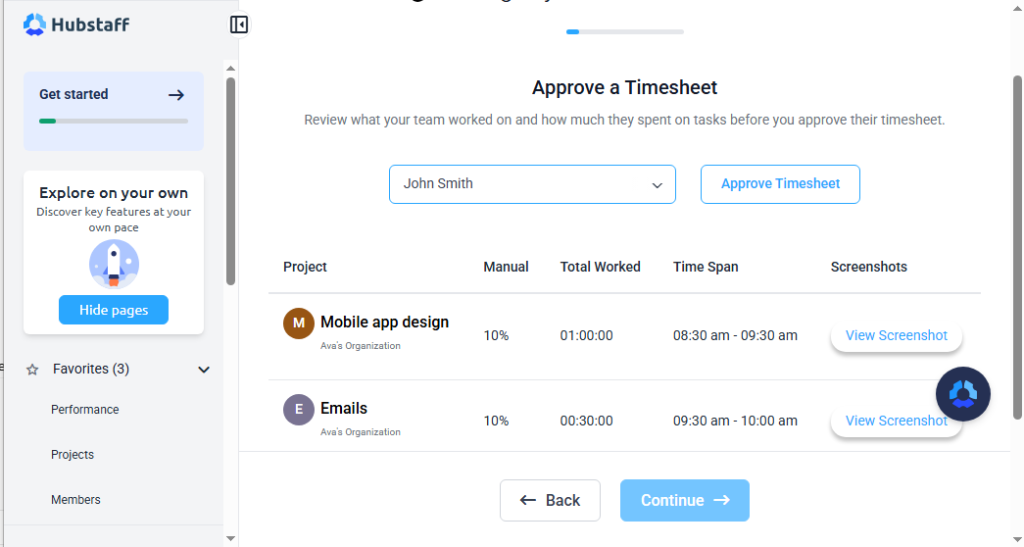
Hubstaff is a time-tracking and work management tool designed to help hybrid, distributed, and remote teams work more efficiently.
It makes time tracking effortless with a single click. And offers activity monitoring to track your team’s productivity with clear insights so you can see who is working and what they are working on. In short, Hubstaff allows you to see how productive your team is—at a glance.
So, why is it my winner? Why is it the best remote work tool in this category?
Why it wins
Hubstaff is intuitive and easy to use. You and your team members can sign up and start tracking time with one click. No tutorial. No overloaded interface. No trouble figuring out what each feature does.
I love Hubstaff’s automatic time tracking feature, which runs in the background and records time while your team focuses on work.
Don’t like the auto tracker? Hubstaff allows manual tracking too. It’s less rigid compared to auto tracking, letting you choose what gets logged, when it is logged, and how time is categorized.
Hubstaff also supports idle time detection. It pauses the timer automatically when team members are inactive during work sessions, allowing you to filter out wasted time and reduce payroll costs.
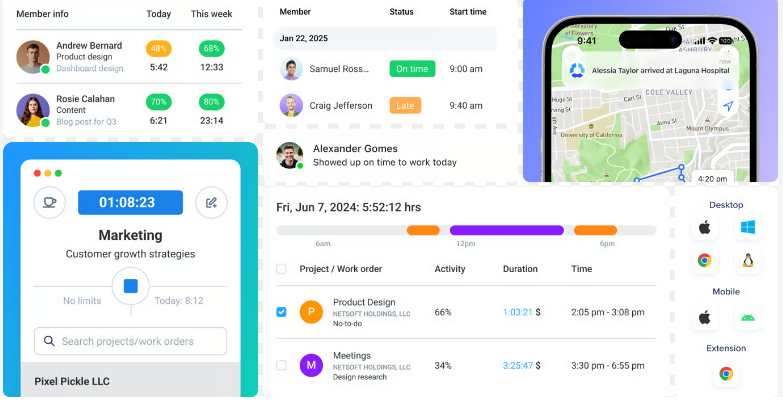
If you have team members who are usually on the go. Or living in areas with poor internet, you’d appreciate Hubstaff offline tracking. It records tracked hours locally and syncs the data automatically once an internet connection returns.
Hubstaff’s impressive employee monitoring features were one of the major reasons why I chose the tool. It includes screenshots (optional), which provide visual proof of work, and activity monitoring, which tracks team members’ keyboard and mouse activity to determine their productivity level.
Then there’s my favorite: app and URL tracking. This feature lets you see which apps and URLs team members visited during active work sessions, including the percentage of time spent on each app or website.
Hubstaff employee monitoring also has GPS and location tracking. With it, you can track (in real time) the location and working time of field staff while on duty, ensuring accountability and accurate time entry. In the end, all tracked time and monitoring data are converted into detailed reports for payroll, client billing, and compliance.
It’s worth noting that Hubstaff employee monitoring isn’t designed to act as a sneaky surveillance agent, spying on team members’ activities. Rather, it’s designed to promote accountability and transparency.
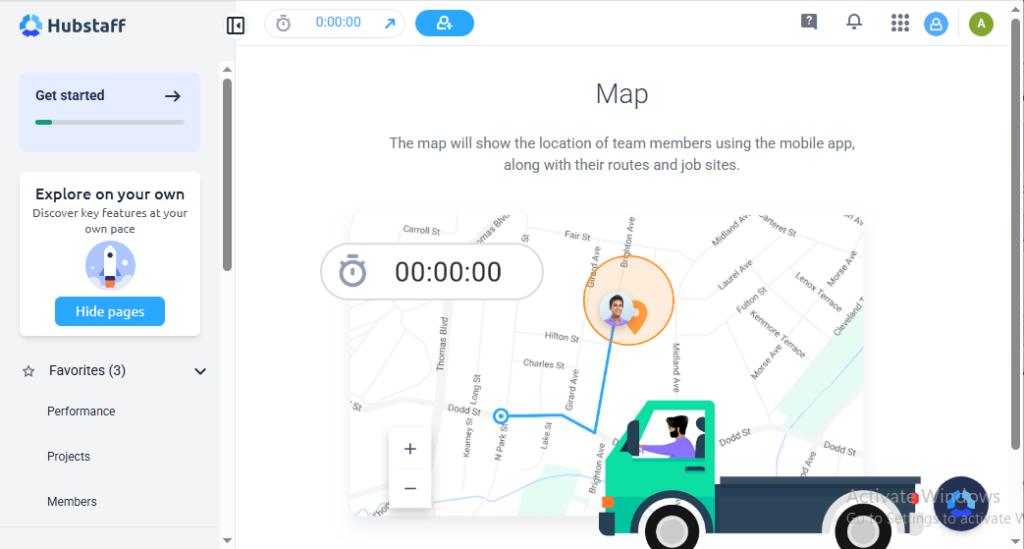
Hubstaff reporting is another standout feature. It includes time and activity reports, daily totals reports, amount owned reports, payment reports, and more. The time and activity report gives you detailed insights into how much time your team has tracked, their activity levels, and what they are working on—by member, project, or date range.
Do you appreciate weekly check-ins? The daily total report summarizes time tracked, activity levels, and earnings by team members and projects, grouped by week. The amount owed report, meanwhile, shows team members’ earnings based on tracked time and pay rate. This ensures that they are compensated accurately.
And if you want to review team spending, the payment report gives you an overview of all payments made to team members. You can filter the data by team members, date range, or payment type.
Hubstaff is available across major platforms, including desktop, mobile, and the web. This allows you to track time from anywhere—whether you’re on the go with just your phone, commuting, working from home, and so on.
Speaking of integrations, Hubstaff integrates with over 30 applications, including Asana, monday, Slack, Salesforce, and Zendesk, helping you and your remote team create a smoother workflow.
The Honest downside
Hubstaff’s biggest downside is its monitoring feature. While it helps promote accountability and curb time theft, it poses some privacy concerns. For example, some team members may find random screen capturing, app and URL tracking, keyboard and mouse monitoring, and idle-time alerts invasive. This could damage their morale and create distrust.
Additionally, I don’t think tracking keyboard and mouse activity levels is a litmus test of team members’ productivity. Because it may underrepresent productive work that doesn’t involve mouse or keyboard movements.
For instance, a salesperson on a sales call, a graphic designer reading a detailed project brief, or a software developer reviewing code may seem low-activity even when real work is happening.
User feedback supports this, with Sarah C. an independent contractor stating:
“There was one single time where my client asked me to watch a training video, and Hubstaff marked me as idle while I did so. I don't think it should have, as I was doing what I was asked, but I just learned to interact more with the screen when watching training videos.”
Some users also complained about time being stopped after a few minutes of idleness. This could create friction among team members whose work doesn’t always require them to be in front of their computers. Other complaints include frequent lags and syncing issues, which can result in discrepancies in tracked time.
Hubstaff Pricing
- Free plan: Available for one user
- Paid plans: From $4.99 per user/month (billed annually)
- Free trial: 14 days available for paid plans
Who should consider something else?
Don’t think Hubstaff has the features you want in a remote team software? Here are other options to consider:
Toggl Track

Toggl is a simple time tracking software that helps remote teams, consultants, and freelancers track, record, and visualize how they spend their time.
Choose Toggl if:
- You don’t manage field teams
- You need a tool with robust integrations
- You want a tool that is clean, intuitive, and easy to use
- You need a tool that’s built on anti-surveillance and trust
- You need a time tracker with better automated time tracking
- You need a time tracker that lets you visualize data in multiple formats
Clockify

Clockify is a time tracker and timesheet software designed for remote teams, freelancers, and businesses that want to manage and track work hours across projects.
Choose Clockify if:
- Payroll isn’t a priority
- You manage a large team
- You want a time tracker with a generous free plan
- You want a time tracker with light employee monitoring features
See my full Clockify vs. Toggl comparison for small teams
5. AI & Automation
Winner: Zapier
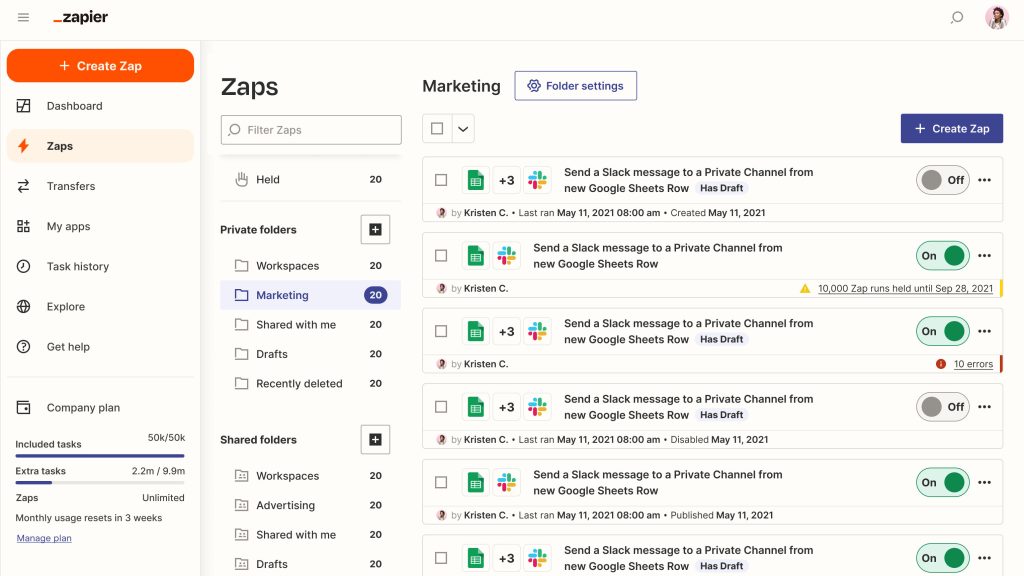
Zapier is a no-code tool that connects different apps so you can automate repetitive workflows, saving time and improving productivity.
Remember those boring and routine tasks, like emailing, logging meeting notes in Notion, and reminding team members of overdue work? Zapier takes them off your plate, so you can focus on impactful tasks.
So, why Zapier?
Why it wins
Ever heard of love at first sight? That’s exactly how I felt after logging into Zapier for the first time. I immediately liked its interface, which is clean and intuitive—with fewer buttons, tabs, and menus screaming for my attention.
And its drag-and-drop workflow builder? It makes automation fun and easy for everyone, whether you’re a programming wizard or a spreadsheet warrior.
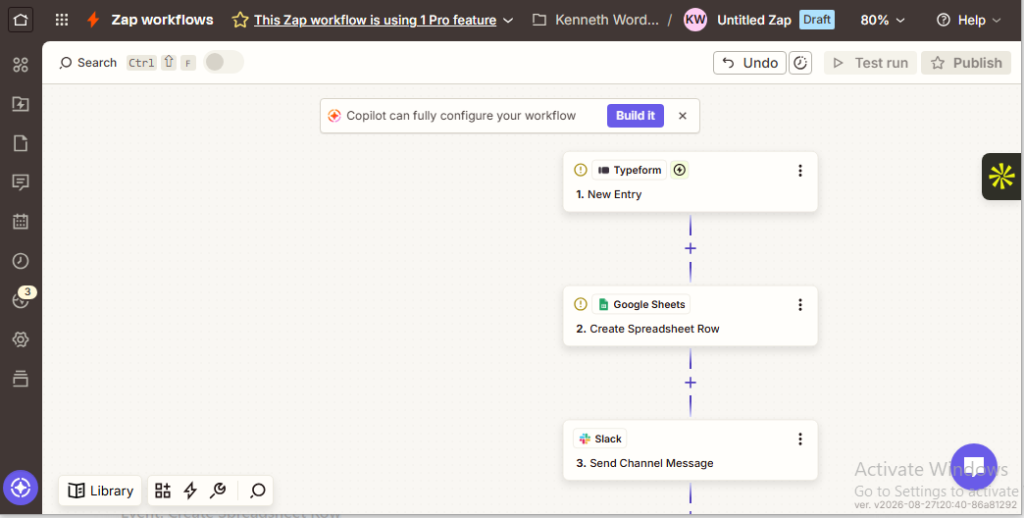
I also love the built-in AI-powered assistant, Copilot, which makes the automation process seamless by turning prompts into workflows.
Here’s what I mean.
Imagine you want team members to be informed via Slack when new tasks are added in Trello. You could type a prompt like “when a new task is added in Trello, notify the team in Slack in Copilot.” Zapier will automatically create a workflow that syncs Trello and Slack, so team members are informed when new tasks are added in Trello.
Impressive, right? Hold on, there’s more!
Zapier’s automation is one of the most powerful and easiest to set up I’ve seen. Interestingly, many users on review platform G2 agree! With Zapier, you can build automated workflows (or Zaps) around repetitive tasks without writing a single line of code. It’s easy and straightforward thanks to Zapier AI (Copilot), workflow automation templates, and its point-and-click setup.
I love that you can test-run your zap to ensure it’s working perfectly before activating it. This helps spot missing data and broken app connections. Zapier also sends real-time alerts via email, chat, or SMS so you can keep track of important events and ensure nothing slips past you.
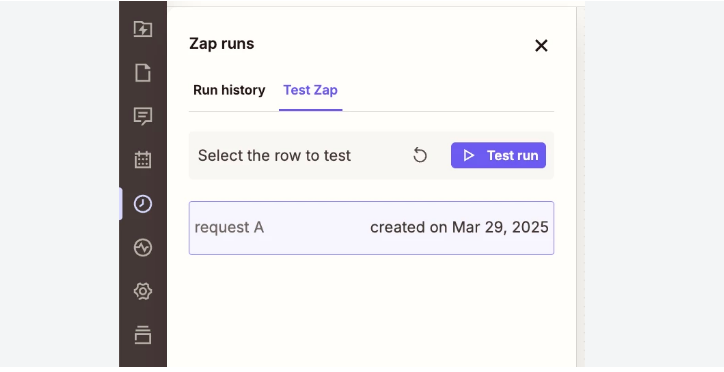
On top of that, did you know that Zapier seamlessly integrates with over 9,000 tools? It’s the most of any automation platform! So, whatever tool your team uses —Slack, HubSpot, Notion, Mailchimp, Stripe, or Airtable —Zapier connects with it, reducing repetitive work.
And yes, it provides API access (API by Zapier) that allows you to integrate apps that don’t connect natively.
Beyond its robust integration, I appreciate how easy it is to customize automations on Zapier using multi-step and editable workflows, configurable triggers and actions, data mapping and transformation, paths (if/else logic), and filters. This lets you tailor your Zaps to your team’s processes.
Want to build automated workflows with team members? Or maybe you built an amazing zap and want to make it available to others? Zapier also has collaboration features that let you and your team build, share, and manage automated workflows as a unit. Unfortunately, it’s limited to Team and Enterprise plans.
The Honest downside
Zapier may be the king of no-code workflow automation. But like any king, it has weaknesses. First is its pricing model. Zapier is billed based on the tasks you perform per month. As a result, monthly costs can go through the roof if you are a heavy user. Or if you run complex automations that require multiple steps.
I also noticed that some advanced features, like collaboration, advanced admin controls, alerts, and monitoring, are limited to higher plans. This can be frustrating for smaller teams with a modest budget.
Additionally, users complain that Zapier can’t handle heavy logic and complex branching—an area where competitors like n8n and Make excel. And sometimes, when zaps break, debugging and troubleshooting is difficult and time-consuming.
Zapier Pricing
- Free plan: Available
- Paid plans: From $19.99/month (billed annually)
- Free trial: 14 days available for paid plans
Who should consider something else?
If Zapier’s automation doesn’t fit your business’s workflow. Or maybe its pricing is beyond your tech stack budget. There are other AI/automation tools that may suit your remote team’s needs:
Make

Make is a powerful AI automation platform that integrates with different apps, allowing you to automate repetitive tasks without writing a single line of code.
Choose Make if:
- You manage a growing remote team
- You want to automate complex workflows
- You manage a team with some automation experience
- You prefer seeing your workflow mapped out visually
- You and your team run high-volume or multi-step automations
n8n

N8n is a low-code automation tool that lets you automate your workflow by connecting different apps and services in a single customizable sequence.
Choose n8n if:
- You are a scaling remote team
- You manage a remote team with at least one technical member
- You want an automation tool that offers full control over your data
- You want a flexible automation tool that allows you to build your own integrations from scratch
6. Security
Winner: 1Password
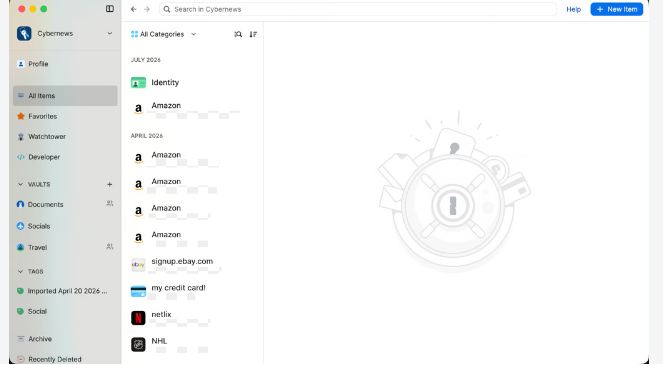
1Password is a cloud-based password manager that helps you generate, organize, and store passwords and other sensitive data securely in one place.
Think of it as a digital lockbox that not only keeps login details safe but also makes them easy to access, automatically filling them in when you log in to websites or apps.
1password also allows you to share login credentials securely with your remote team, and lets you control who can access accounts. Here is why it is the best productivity tool for remote teams in its category.
Why it wins
1Password can store pretty much everything—passwords and logins, software licenses, financial information, personal identities, and secure notes. It also lets you organize and share them safely as a secure, time-sensitive link or shared vault (a secure, encrypted digital folder).
I was really impressed by 1Password’s clean, intuitive, and well-structured interface, which lets you see all navigational items at a glance. You know what else I liked? Its sign-up process.
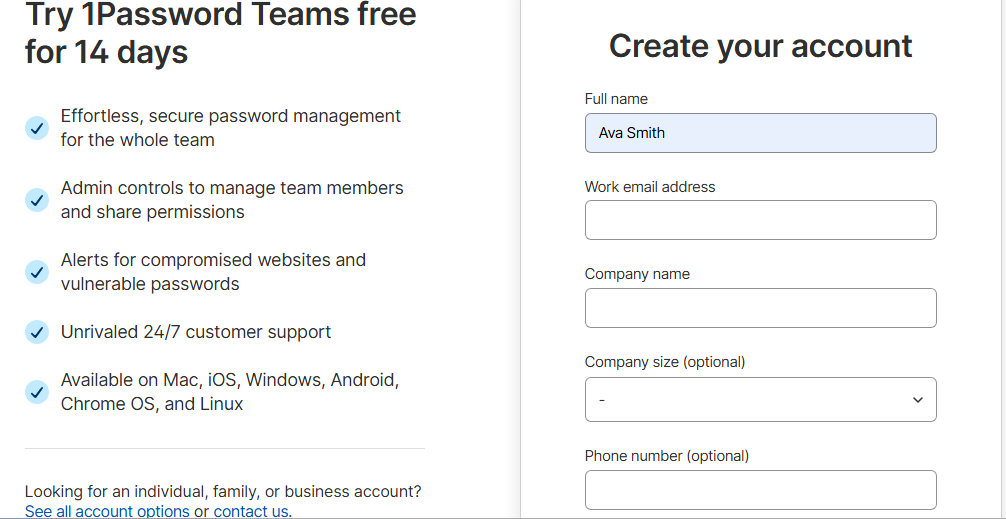
I signed up for 1Password within 2 minutes. No “how did you hear about us” questions. No needless form fields. Or non-essential user information like gender, date of birth, recovery hints, etc.
Your full name, work email address, and company name are all you need. The best part? I signed up for its 14-day free trial without entering my credit card details.
1Password protects your accounts from unauthorized access with multifactor authentication (2FA). You can choose to receive a one-time password (OTP) from an authentication app. Or access your account via a hardware security key like YubiKey.
As a manager, 1Password lets you monitor and control what team members can access. This means you can grant or revoke access to vaults when new team members join or leave. You can also upgrade access when someone is promoted or changes roles.
That’s not all…
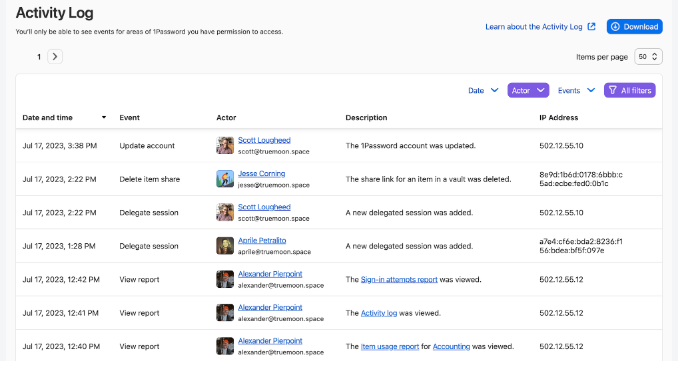
1Password also lets you monitor activity within your team’s account. No snooping. No spying. Just for security purposes. Its audit log—which is limited to the team and business plans—lets you see:
- Successful and failed sign-in attempts
- Which items are shared with others
- When team members set up new devices
- Changes to vaults (creating, deleting, renaming)
Now, let’s talk about security! How secure is 1Password?
1Password secures your credentials with industry-standard AES 256-bit encryption. Scared that they might steal your login details? You shouldn’t be! 1Password uses zero-knowledge encryption, meaning they can’t access your passwords.
I admire 1Password’s security key feature, which offers extra protection against theft. The unique 34-character code—required when signing into a new device—makes your account hard to hack if 1Password were breached.
As someone who reuses old or very similar passwords across different accounts, I found 1Password Watchtower very useful. The tool scans your digital vaults for breaches, weak, compromised, or reused passwords. And alerts you via browser notifications or warning pop-ups when it finds anything suspicious.
1Password is available on desktops, mobile devices, tablets, and major web browsers. It also integrates with identity providers like Okta and Azure, developer tools like GitHub Actions and Jenkins, cloud infrastructure platforms like Pulumi and AWS, and so on.
The Honest downside
1Password lacks a free plan, which is a major talking point among users. But how could I blame them? Its prices are higher than those of some of its alternatives. This matched my findings and was widely reflected in reviews on G2 and Capterra.
While 1Password offers the standard 14-day free trial, its expiry restricts teams from accessing the tool, even if they only need basic features.
Then there’s autofill, which claims to make logging in a breeze. Interestingly, it fails to detect some websites. This forces users to manually copy and paste their login credentials, adding friction to the login process.
While browsing 1Password’s reviews on G2 and Capterra, I discovered complaints about its customer service. While some described it as “non-existent”, others expressed satisfaction, praising its responsiveness.
1Password Pricing
- Free plan: Not available
- Paid plans: From $2.49/member/month (Teams Starter Pack, billed annually)
- Free trial: 14 days available for paid plans
Who should consider something else?
It’s clear that 1Password is one of the most secure online password managers. However, if its features is too much for your remote team. Or maybe its features aren’t well suited to your security needs, you can always explore other alternatives.
Okta

Okta is a cloud-based identity and access management platform that allows users to access all the company’s apps through one set of credentials.
Think of it as a security checkpoint for a company’s or remote team’s tech stack. You show your identity once, and you’re given access to all approved apps or websites.
Choose Okta if:
- You manage a large remote team with a huge tech stack
- You want to simplify access and secure logins across your tech stack
- You want centralized control over who can access apps your team uses
- You want a tool with stronger SSO (single sign-on) and MFA (multifactor authentication)
- You manage a remote team that handles sensitive data or customer information, e.g., IT & DevOps teams, finance & accounting teams, etc.
Bitwarden

Bitwarden is an open-source zero-knowledge password manager that helps store, manage, and share sensitive information securely. It’s suitable for individuals, businesses, and remote teams.
Choose Bitwarden if:
- You are cost-sensitive
- You need a password manager with a generous free tier
- You need a password manager with a self-hosting option
- You need an open source password manager for transparency
Best Productivity Tool Stacks for Different Remote Teams
Picking the right tool stack for your remote team is like building the perfect playlist. Every tool needs to fit right into how you work, supporting different stages of your workflow.
Below, I handpicked the best productivity tool stack for different remote teams:
Best Stack for Async-First Teams
| Tool | Purpose | Plan | Price/User/Month |
|---|---|---|---|
| Notion | Documentation | Plus | $10.00 |
| ClickUp | Project management | Unlimited | $7.00 |
| Slack | Communication and collaboration | Pro | $7.25 |
| 1Password | Security and password management | Business | $7.99 |
Estimated combined price: $32.24 per user per month ($387 per user/year)
Why it works
Here is why Notion, ClickUp, Slack, and 1Password are the perfect pairing for your Async-first team.
Notion for documentation
Notion allows comments on pages and collaborative editing. It also offers shared wikis, version history, and a searchable knowledge base for storing and organizing your important documents.
ClickUp for project managements
ClickUp lets you comment on tasks. It also includes activity history that provides a detailed record of what’s happening. You can see what changed, who changed it, and when.
Slack for communication and collaboration
Slack’s message history, threaded conversations, scheduled messages, and search functionality make it the perfect tool for asynchronous communication and collaboration.
1Password for security and password management
1Password has shared vaults designed for teams and projects. It also makes it easy to share credentials across departments and offers role-based access control. This means access to company resources and tools is granted automatically without waiting for the admin.
Best Stack for Agencies
| Tool | Purpose | Plan | Price/User/Month |
|---|---|---|---|
| Slack | Communication and collaboration | Pro | $7.25 |
| ClickUp | Client project and task management | Business | $12.00 |
| Notion | SOPs and deliverables | Plus | $10.00 |
| Zoom | Client calls and reviews | Pro | $14.16 |
| Hubstaff | Time tracking, client billing and invoicing | Grow | $7.50 |
Estimated combined price: $51 per user/month ($612 per user/year)
Why it works
Remote agencies need the best productivity tools to improve collaboration, efficiency, and organization. Here is why Slack, ClickUp, Notion, Zoom, and Hubstaff are the ideal pick.
Slack for communication and collaboration
Slack works well with agencies’ existing tool stack. Its channels keep conversations organized, while its searchable knowledge history makes it easy to attach context to decisions.
ClickUp for client project and task management
With ClickUp, agencies can automate repetitive actions like sending notifications, onboarding new clients, and assigning tasks. It also lets you create custom statuses that match your project stages. This makes project tracking a breeze!
Notion for SOPs and deliverables
Notion’s standard operating procedure (SOP) template helps streamline how agencies plan, assign, and complete tasks. On top of that, it manages deliverables by consolidating projects in one place, showing who’s working on them, their stage, and any comments.
Zoom for client calls and reviews
Zoom supports webinars, video calls, and screen sharing. So agencies can easily onboard new clients, collaborate in real time, and make presentations—working from anywhere in the world.
Hubstaff for time tracking, client billing and invoicing
Hubstaff automates time tracking, offering reports and insights that help you monitor your team’s productivity. It also uses the tracked hours to generate client invoices.
Best Stack for Small Teams (2-10)
| Tool | Purpose | Plan | Price/User/Month |
|---|---|---|---|
| Slack | Communication | Pro | $7.25 |
| ClickUp | Project and task management | Business | $12.00 |
| Notion | File storage and documents | Plus | $10.00 |
| 1Password | Password sharing and management | Teams Starter Pack | $19.95/month (flat for ≤10 users) |
Estimated combined price: $31 per user/ month ($375 per user/ year)
Why it works
You need an affordable, easy-to-use, and all-in-one software that can grow with your remote small team. Slack, ClickUp, Notion, and 1Password check all the boxes. Here is why they make the perfect tech stack:
Slack for communication
Slack reduces communication chaos by letting you group discussions by topic, team, or project. Remember those old conversations or decisions you’ve been trying hard to dig up? Slack search helps you retrieve them with a click, so you don’t have to trawl through a sea of conversations.
And there’s Slack Clips. It lets you record and share short async video or audio messages with team members. Slack also offers a free plan with basic functionalities.
ClickUp for project and task management
Like Slack, ClickUp has a generous free plan. Even better, it’s an all-in-one productivity platform—replacing 3-5 separate tools in your tech stack: tasks, docs, goals, time tracking, and whiteboards.
With ClickUp, small teams can create, assign, track, and complete tasks without juggling multiple apps. Oh, and it helps automate those boring tasks, so you can focus on high-impact work.
Notion for file storage and documents
Notion offers a free plan. It is a good option for small teams looking for a tool that simplifies file storage and document management.
One of its key selling points is that it reduces information fragmentation by helping you build a company knowledge base to store internal FAQs, client information, and onboarding materials in one searchable place.
1Password for password sharing and management
1Password helps you generate, organize, and store passwords in secure, encrypted vaults—allowing you to share them securely with team members.
Say goodbye to logging in manually when you visit a website or open an app. 1Password’s autofill feature makes the process a breeze.
Best Stack for Fast-growing Startups (10-20)
| Tool | Purpose | Plan | Price/User/Month |
|---|---|---|---|
| Slack | Communication and collaboration | Pro | $7.25 |
| Asana | Project management | Starter | $10.99 |
| Notion | Docs, wikis, and SOPs | Plus | $10.00 |
| Zoom | Meetings and async video | Pro | $14.16 |
Estimated combined price: $42 per user/month ($499 per user/year)
Why it works
Here is why Slack, Asana, Notion, and Zoom are the ultimate tech stack to support your fast-growing remote startup.
Slack for communication and collaboration
With Slack, teams can send direct messages, links and documents, and share files in real time.
Discussions are organized by topics, projects, and departments, keeping conversations clear and structured. Slack also connects with almost everything: Asana, ClickUp, Trello, Notion, and 2,596 other tools.
Asana for project management
Asana offers an automation feature that lets you put repetitive tasks on autopilot—freeing up time for critical work. The tool gives you a bird’s-eye view of your projects.
You see who is working on what, the tasks, due dates, and overall progress in different visual formats, including list view, board view, and timeline view. All in real time. Asana also lets you break down tasks into bit-sized with assignees and due dates attached for accountability.
Notion for docs, wikis, and SOPs
While Asana handles project management, Notion manages your startup’s documentation. It lets you build a wiki, which unifies important information in one place. This ensures that everyone stays aligned.
It also lets you build a searchable knowledge base for storing your startup SOPs, FAQs, training materials, and more.
Zoom for meetings and async video
Zoom takes online meetings to the next level with its HD video and audio quality. Want to launch a product? Or host a sales presentation? Zoom webinar is at your disposal!
The video conferencing platform also allows screen sharing and in- meeting chat for better collaboration.
Best Stack for Engineering Teams
| Tool | Purpose | Plan | Price/User/Month |
|---|---|---|---|
| Slack | Communication and collaboration | Pro | $7.25 |
| Asana | Project and task management | Starter | $10.99 |
| Confluence | Documentation | Standard | $5.42 |
| Loom | Asynchronous video and screen recording | Business | $18.00 |
| Miro | Whiteboarding | Business | $20.00 |
| 1Password | Password management | Business | $7.99 |
Estimated combined price: $70 per user/month ($840 per user/ year)
Why it works
Your engineering team needs a productivity tool stack that integrates well with existing dev tools, provides async-first communication support, streamlines remote collaboration, and offers speed and performance.
Here is why Slack, Asana, Confluence, Loom, Miro, and 1Password should form your engineering team tech stack.
Slack for communication and collaboration
Slack provides instant messaging that supports asynchronous communication, allowing users to reply at a convenient time. It lets team members share files, documents, images, and code snippets for quick collaboration.
You can easily group discussions by projects, service, bugs and incidents, or teams, thanks to Slack Channels. On integrations, the platform connects with major developer tools, including GitHub, GitLab, Bitbucket, Jira, and Azure DevOps.
Asana for project and task management
Asana makes managing tasks and projects feel less like work. You break down larger projects or tasks into manageable chunks, assign each to team members with deadlines, and visualize them as lists, board view, calendar view, and so on. That way, you can understand project or task progress without repeated back and forth.
Confluence for documentation
While Asana handles project and task management, you need a tool to store and share company knowledge. Confluence lets you organize and store company information, from engineering guidelines to HR policies, and team workflows, in one searchable place.
To keep your teams in sync, it helps create shared wikis—a centralized knowledge base where teams create, edit, and update information.
Loom for Asynchronous video and screen recording
Next is Loom. The screen recording tool supports async video. This means you can record your screen (and yourself) explaining a bug fix and share it with teammates to watch and reply later.
Miro for whiteboarding
Think of Miro as a digital whiteboard where you and your team can brainstorm, write down ideas, and even sketch designs together in real time. It works best for technical planning, user flow planning, and cross-functional collaboration.
1Password for password management
1Password helps you store important credentials like account login details, API keys, and database credentials in a secure digital vault. And allows you to share them securely with team members.
Do you suck at creating strong passwords? Or maybe you dislike the entire process. 1Password password generator can help you create random, secure, and hard-to-guess passwords.
Best Productivity Tools for Remote Teams: Final Takeaways
Choosing the best productivity tools for remote work doesn’t have to be a tough call. The tools I’ve covered are designed to help the typical remote team manage tasks and projects, boost collaboration, and complete work efficiently.
However, the list isn’t set in stone. You understand your team’s challenges, workflows, bottlenecks, budgets, and size better. So, you can always tailor the productivity tool stack to suit them.
For example, if you’re already invested in the Microsoft ecosystem, there’s no point adding Slack to your tool stack. Also, if you’re looking for a project management tool that’s easy on the wallet, it makes sense to consider Trello over Asana.
You should also review your workflow tools before deciding. Don’t subscribe to a new tool if the ones you already have can do the job. This helps avoid tool overlap, preventing wasted budget, fragmented data, and duplicate work.
Lastly, don’t accumulate tools like you’re grocery shopping in Walmart. Stick to 5-8 core tools covering communication, project management, documentation, and security to prevent tool sprawl.
Frequently Asked Questions (FAQs)
What are productivity tools?
Productivity tools are software, apps, or platforms designed to help teams collaborate, plan, organize, and execute work more efficiently. Common types include task and project management tools, communication tools, time management tools, file storage and sharing tools, documentation and note-taking tools, and automation tools.
What are the best remote collaboration tools?
The best remote collaboration tools are Slack for instant messaging, ClickUp for task management, Notion for documentation, Trello for project management, Zoom for video conferencing, Hubstaff for time tracking, and Zapier for workflow automation.
What are the 5 most commonly used productivity tools?
The 5 most commonly used productivity tools are Slack for team communication, Zoom for video meetings, Notion for documentation and notes, Asana for project and task management, and Google Workspace for documents, spreadsheets, and file storage.
What is the best free productivity tool for remote teams?
Notion is the best free productivity tool for remote teams because it offers a generous free plan that comes with unlimited pages and blocks for individuals. Even better, it offers wikis, docs, task tracking, and basic project management under one roof.